Run your first Classic RL experiment
Train a Classic RL agent on a built-in Gym environment using the experiment wizard. About 15–20 minutes if compute is available.
Prerequisites
Arena account with permission to create projects.
Classic RL project (not Advanced Training). You cannot switch modes after creation.
For an interactive version of this flow, start the new experiment card on Home.
1. Open Experiments
After sign-in you land on Home. In the left sidebar, click Experiments.
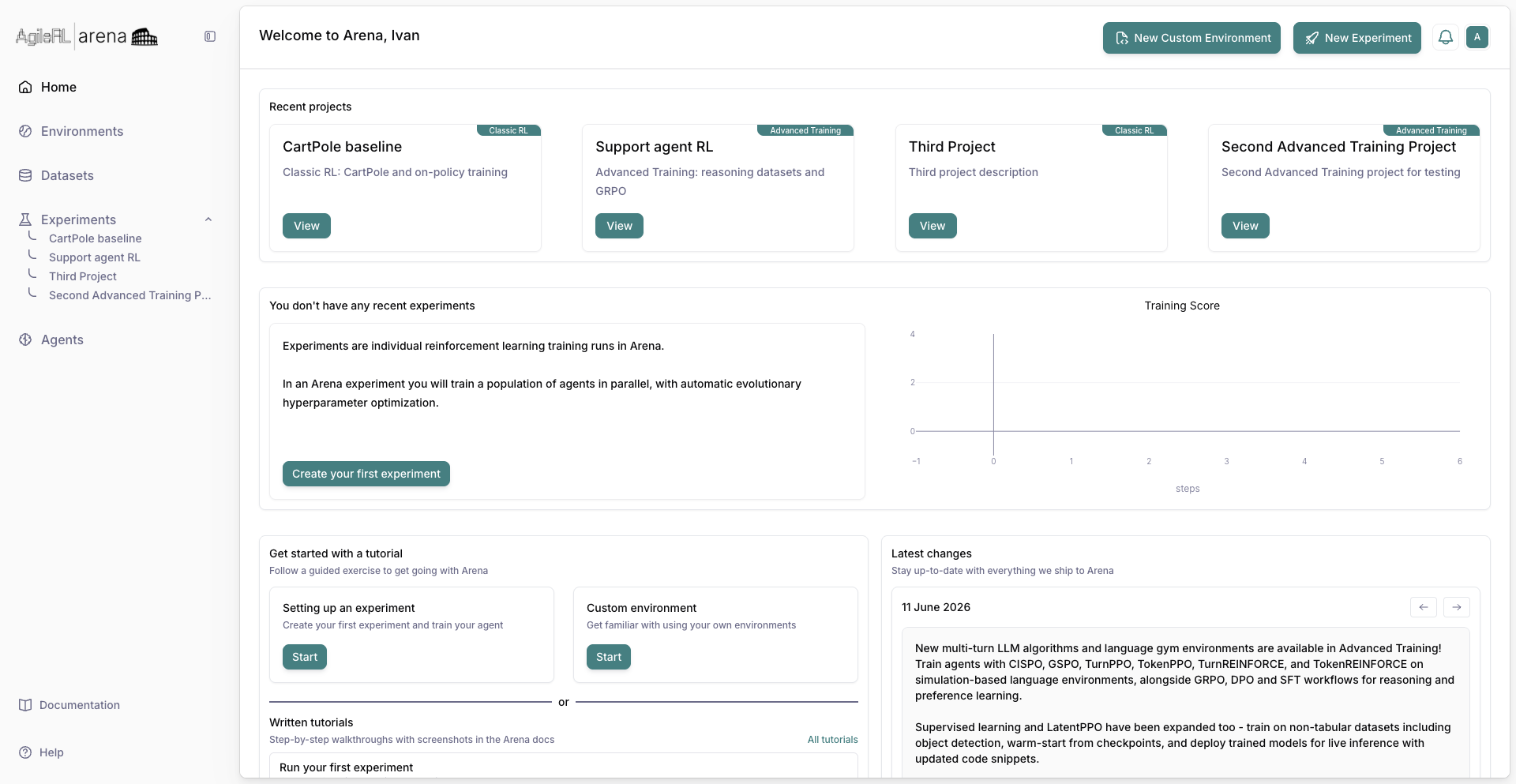
The left sidebar with Experiments selected.
2. Projects list
The Experiments page lists your projects as tiles (default) or a table. Use New project when you need a workspace.
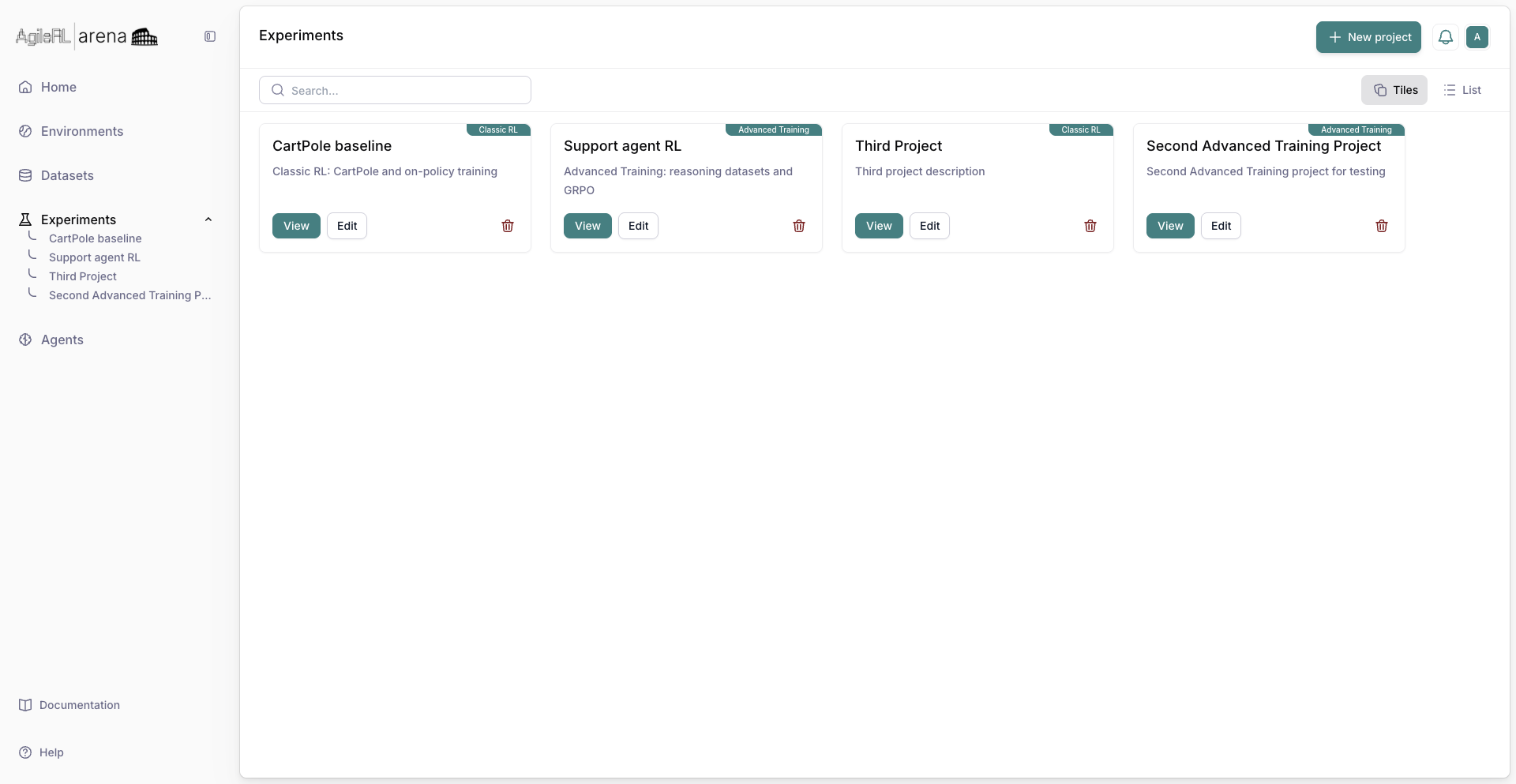
The projects list on Experiments.
3. Create a project
Click New project. Enter a Name and Description. On the Training switcher, leave Classic RL selected. Confirm with Create Project.
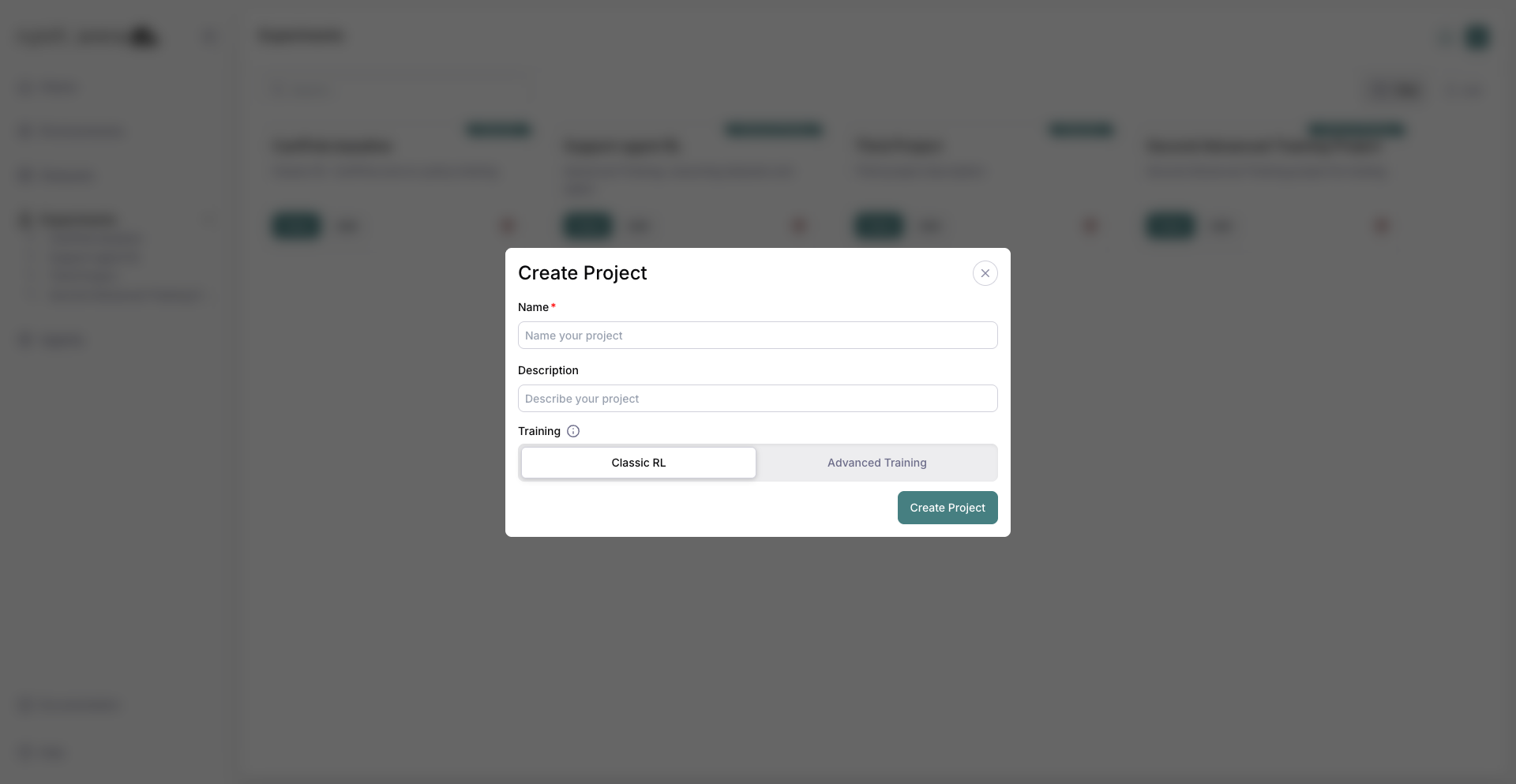
The new project dialog with Classic RL selected.
4. Project page
Arena opens the new project. The Experiments table is empty until you add a run.
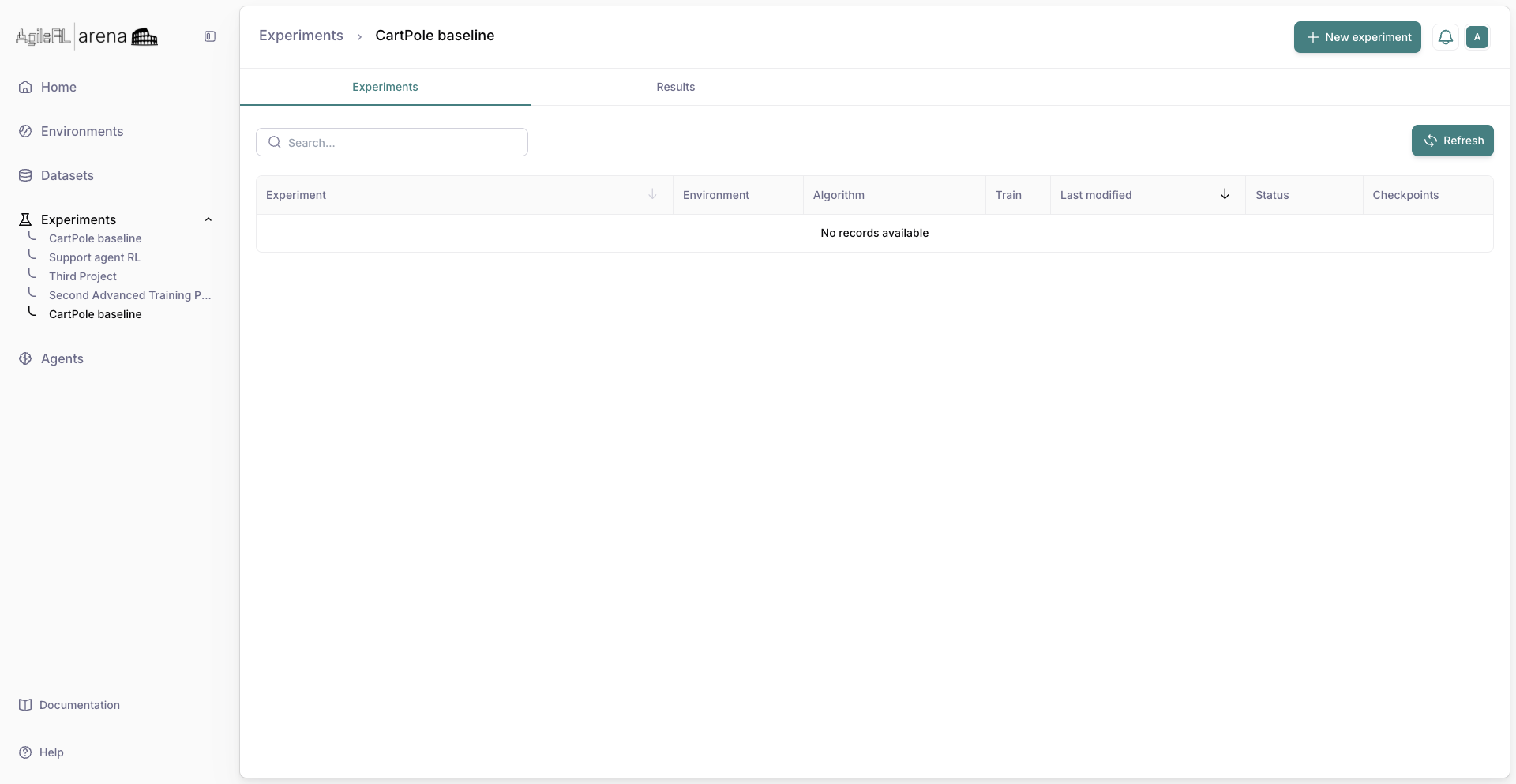
The project page ready for a first experiment.
5. New experiment
Click New experiment, enter a name, and save. The setup wizard opens with steps: Resources → Environment → Agent → Training → HPO → Summary.
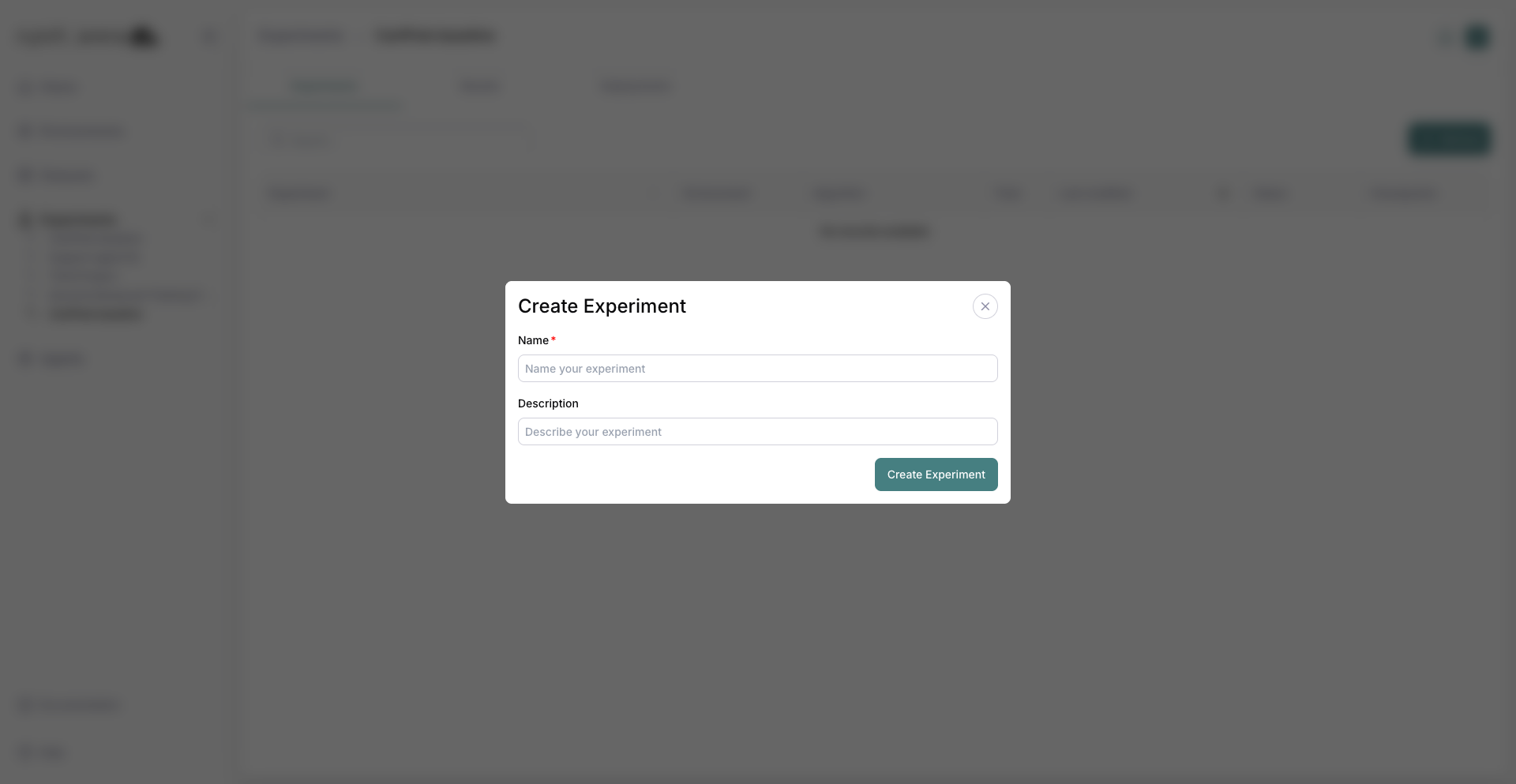
Naming a new experiment before the wizard opens.
6. Resources
Pick a resource class (for example Arena Medium when listed). Each row shows specs and an hourly credit rate. Click Next.
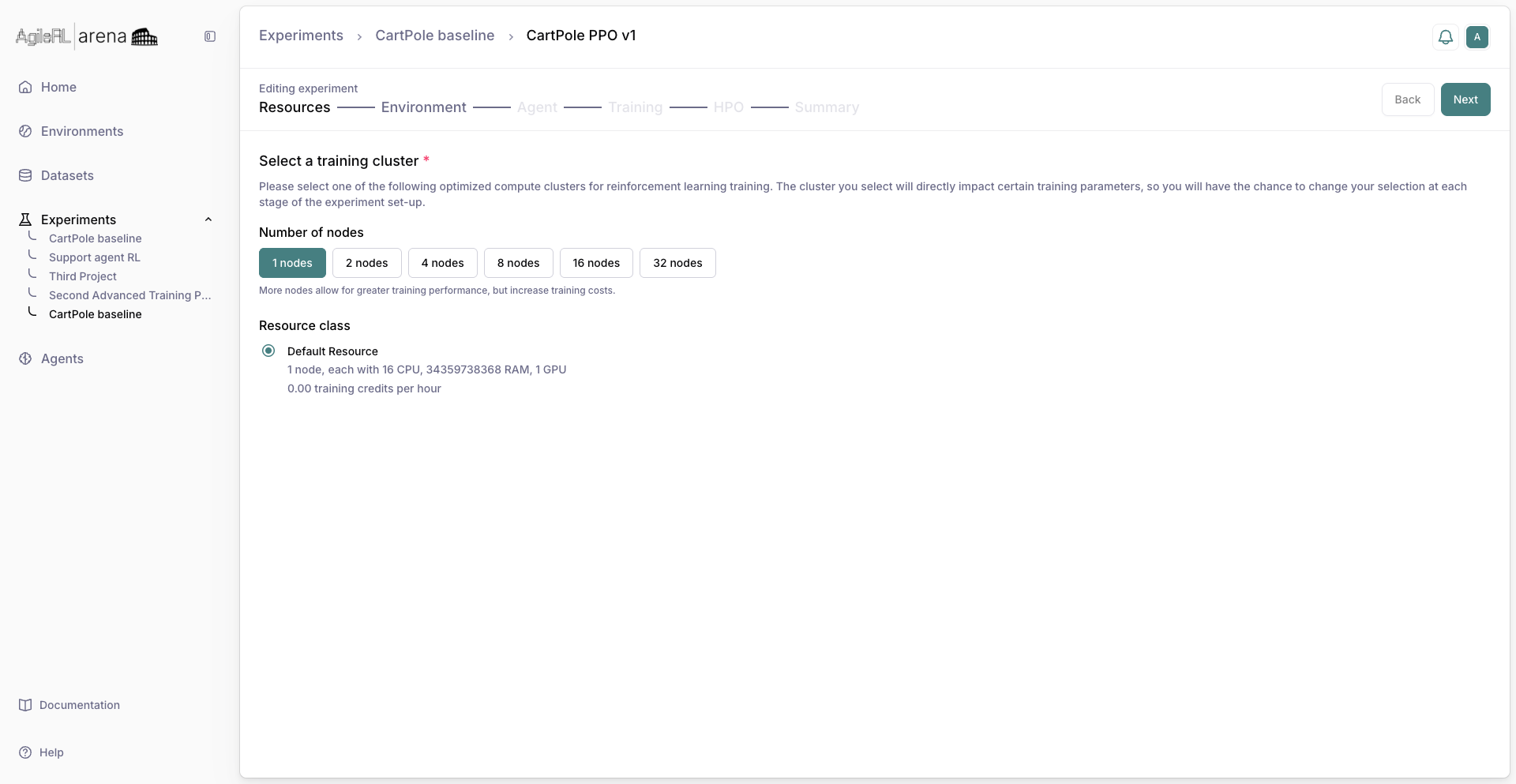
The Resources step with a resource class selected.
7. Environment
Choose a built-in Gym environment. Review validation summary or charts if shown. Click Next.
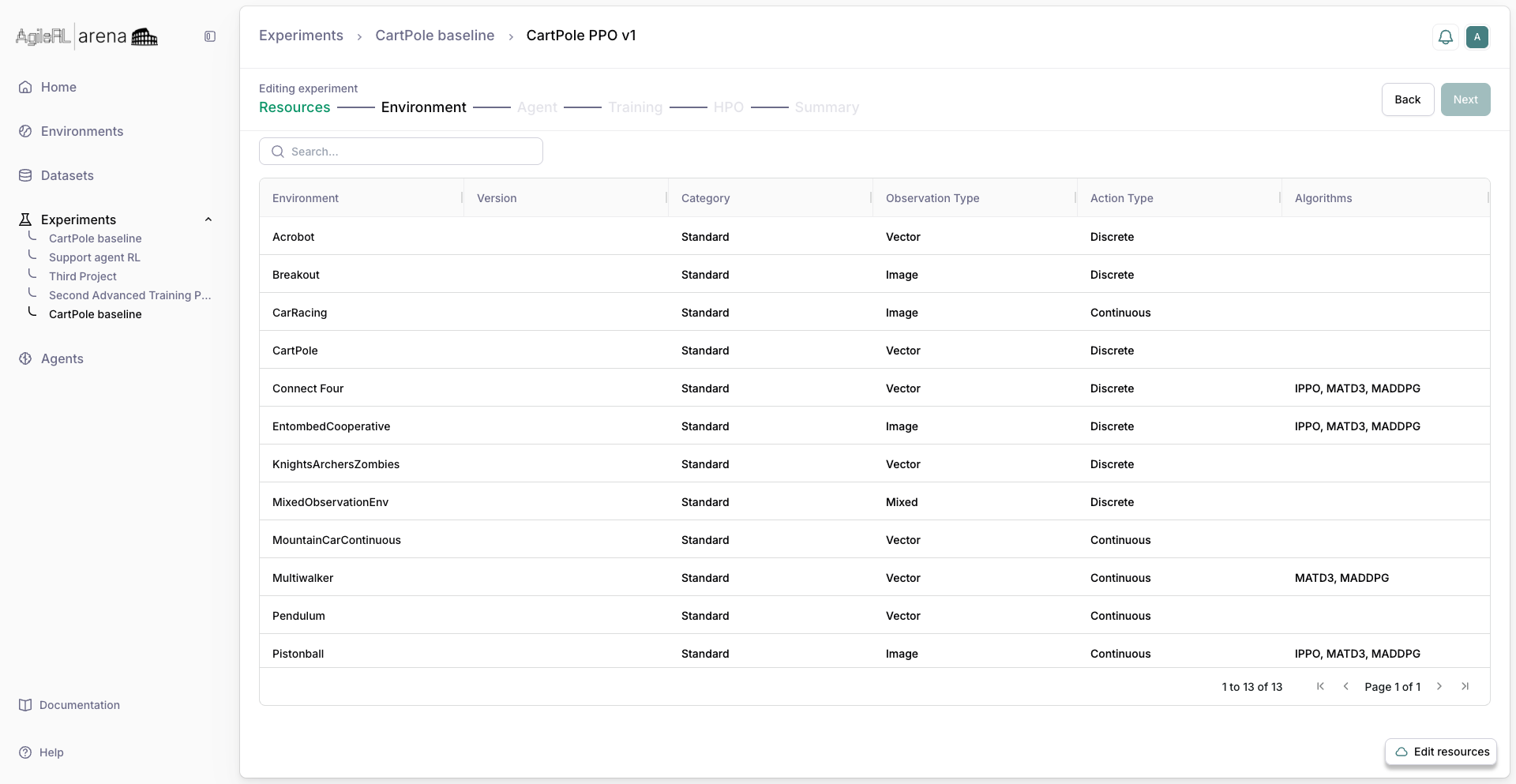
The Environment step with a gym selected.
8. Agent
Select an algorithm such as PPO. Defaults are enough for this walkthrough. Click Next, then continue through Training and HPO with defaults.
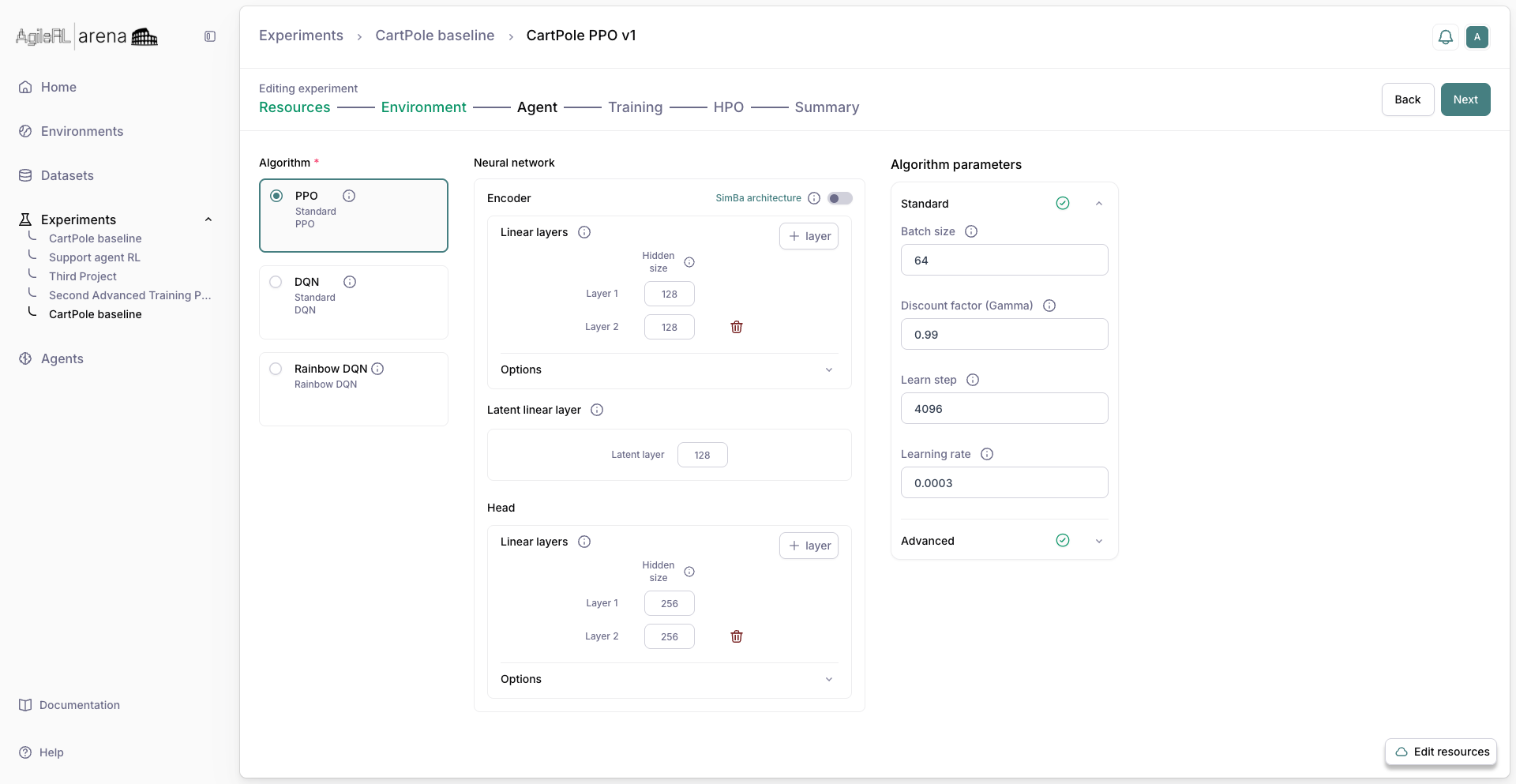
The Agent step with an algorithm chosen.
9. Train
On Summary, review settings and click Train. The experiment row shows a live status in the project table.
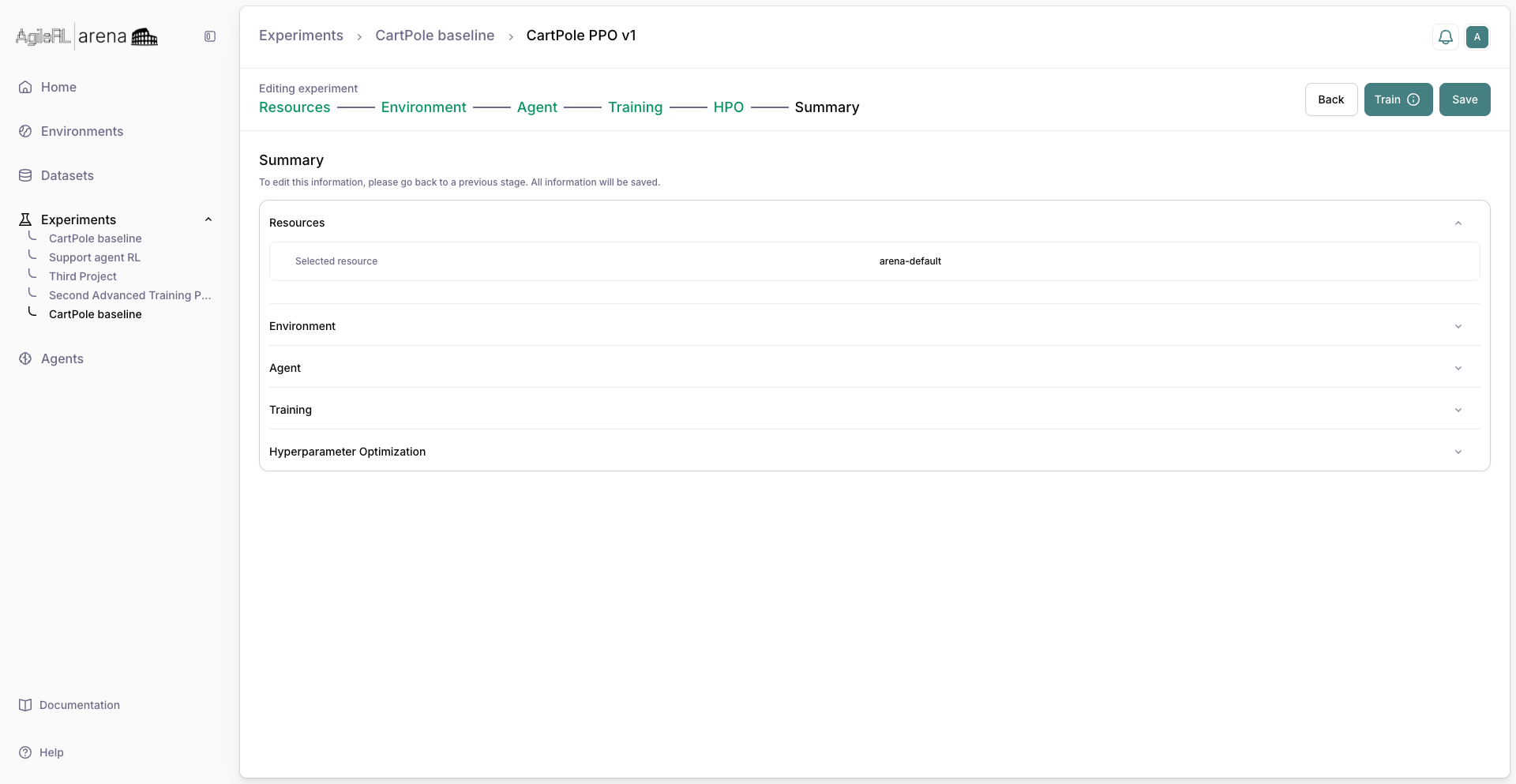
The Summary step before training starts.
10. Results and checkpoints
Open the Results tab to inspect metrics and logs when the run finishes. To view checkpoints, switch to the Experiments tab and expand the experiment row.
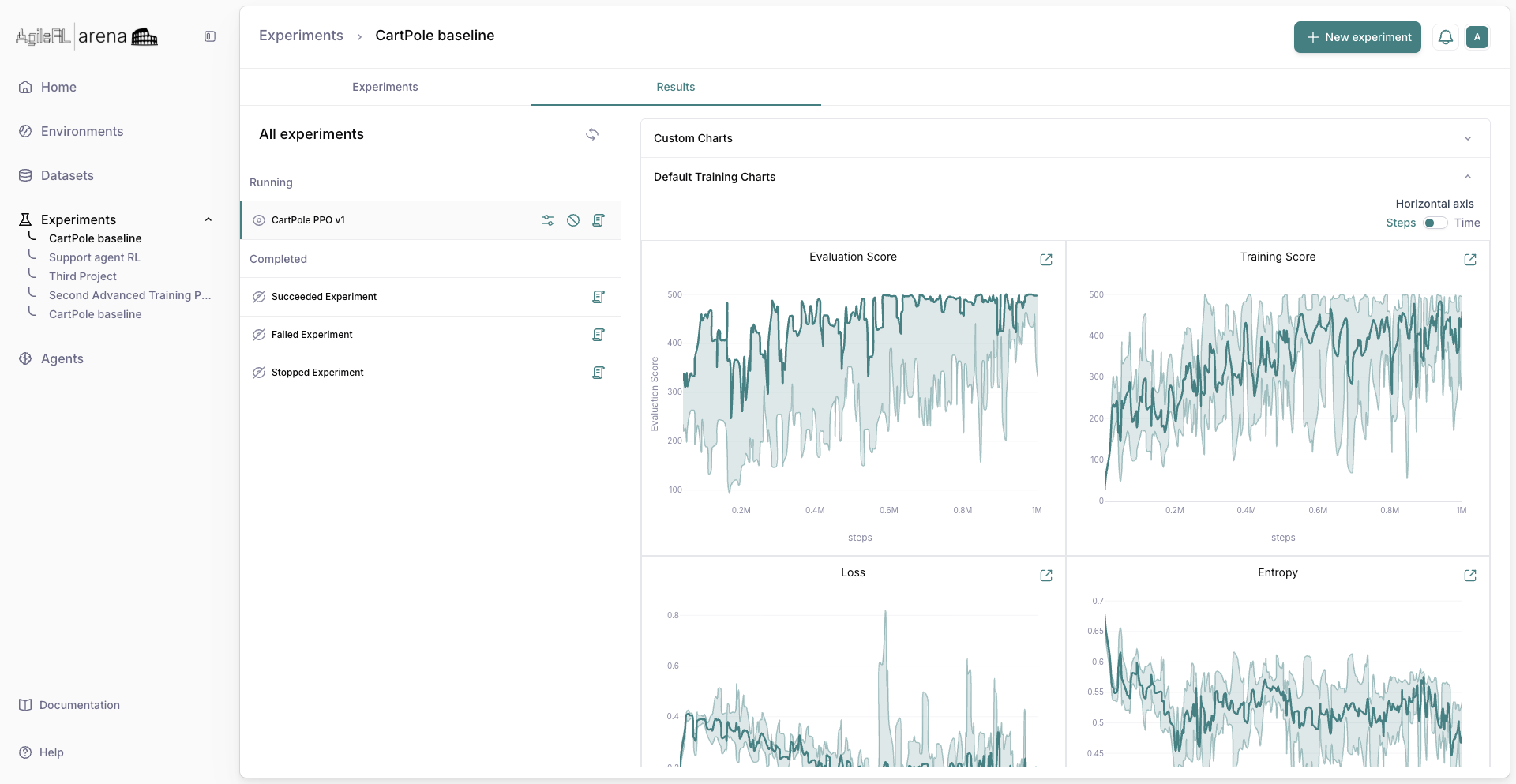
The Results tab after a run is available.
Status labels are defined in Experiment statuses.