Upload a preference dataset
Preference datasets are the Language type with Prompt, Chosen, and Rejected columns. Use them for alignment-style algorithms such as DPO.
Prerequisites
A CSV or Parquet file (or Hugging Face parquet folder) for preference data. See Preference datasets.
1. Datasets sidebar
Click Datasets in the sidebar.
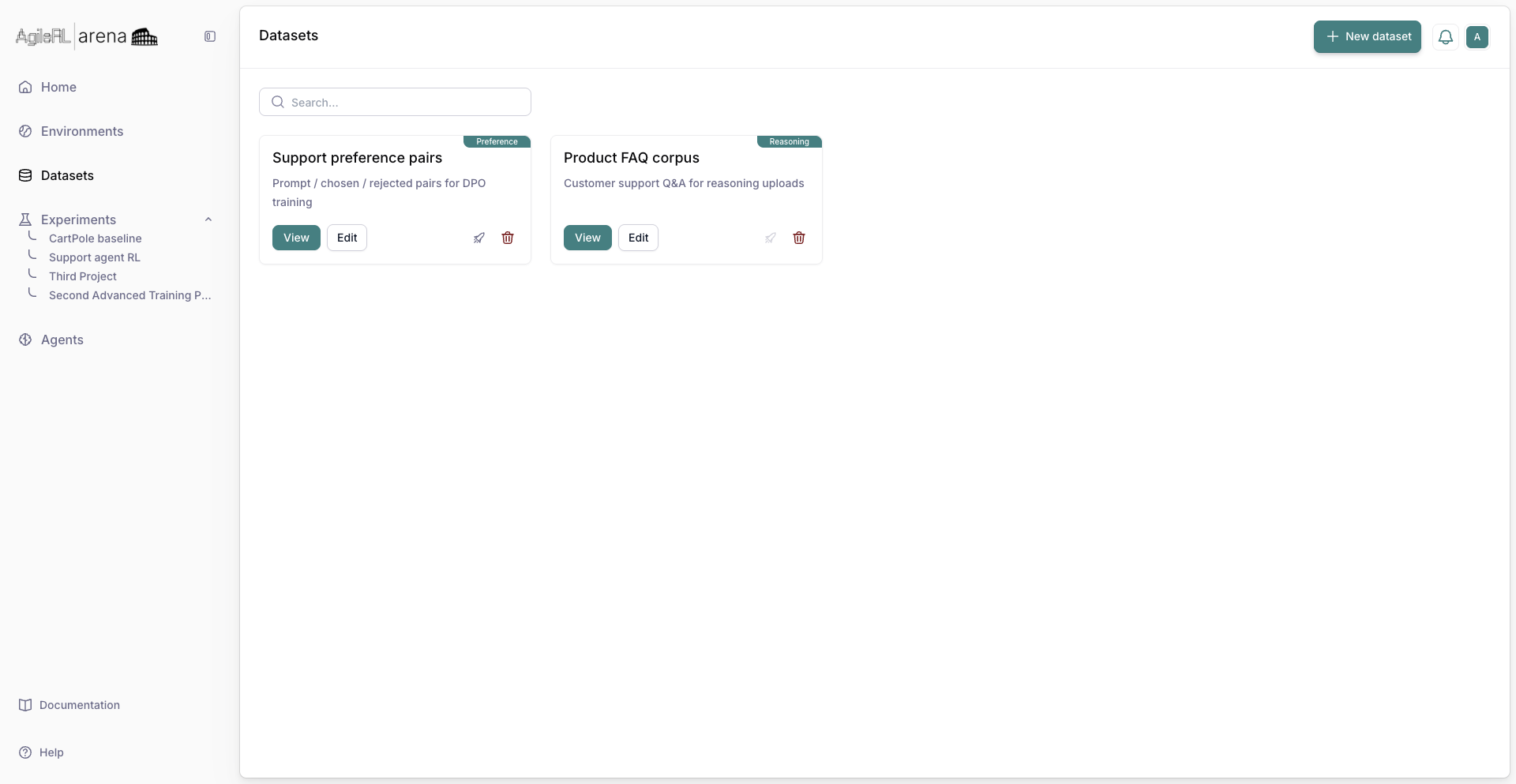
Datasets in the sidebar.
2. New dataset
Click New dataset. Choose category Language, then type Preference.
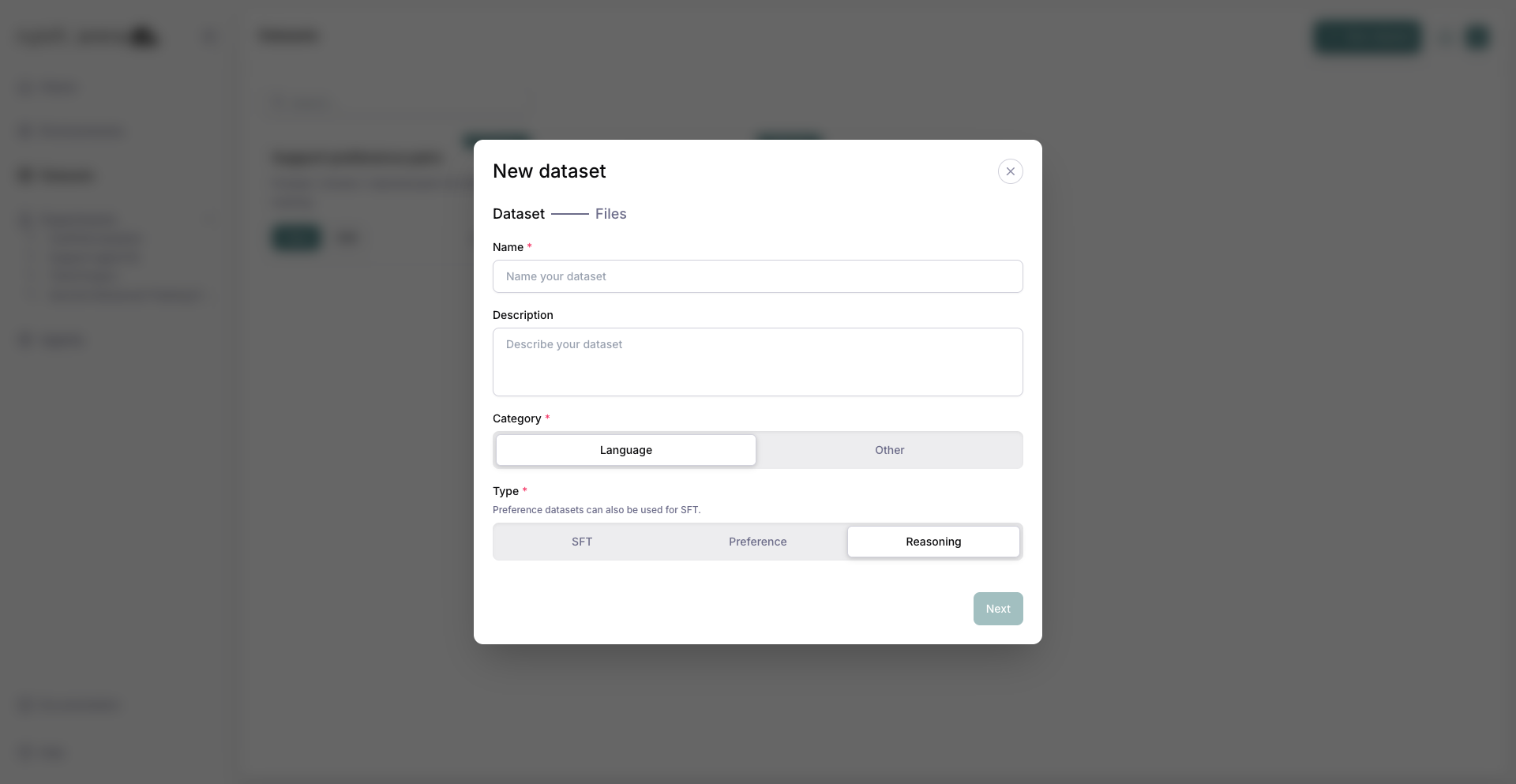
Creating a new preference dataset.
3. Upload files
Upload a local file or pick a preference dataset from Hugging Face.
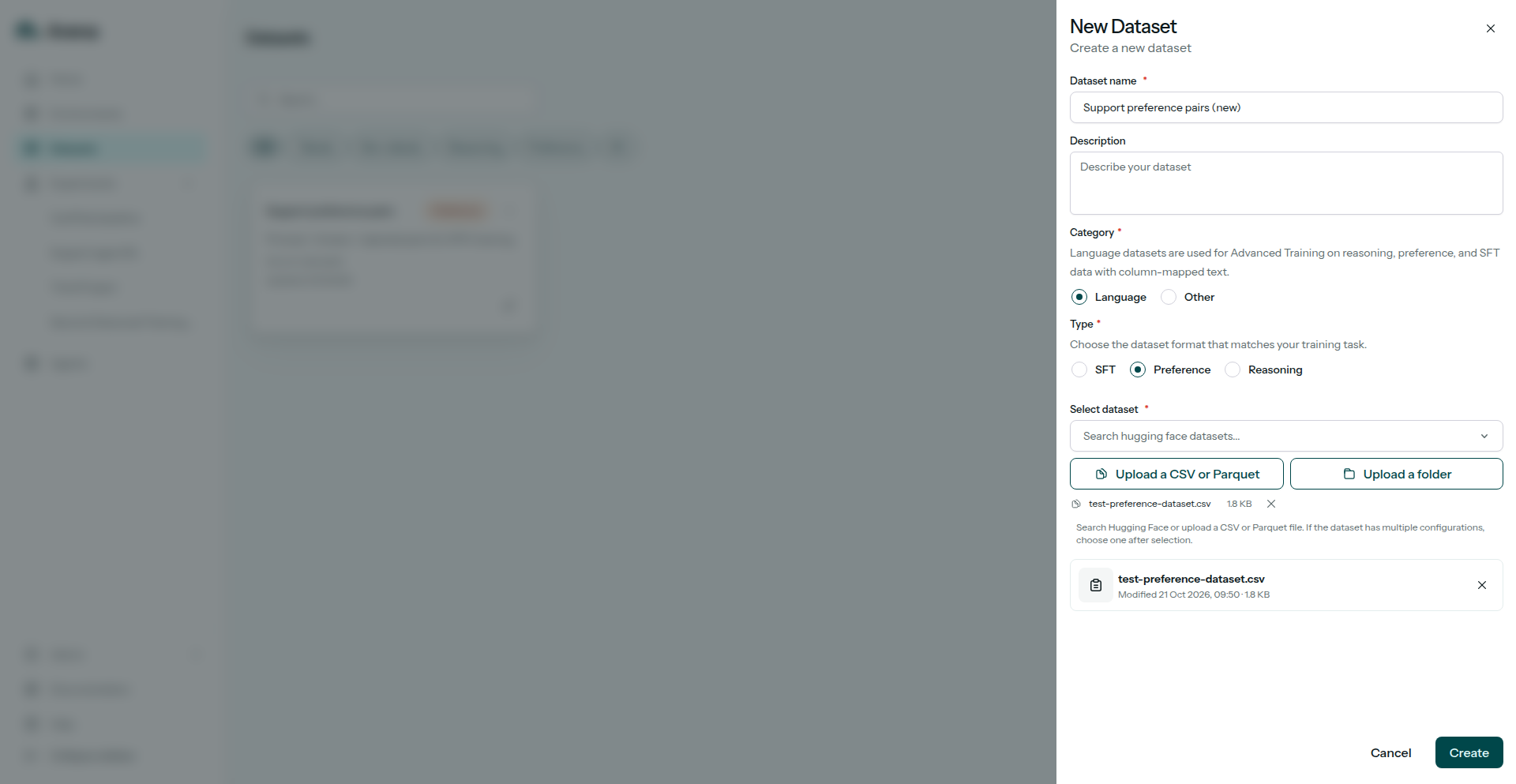
Uploading preference dataset files.
4. Map columns
On Data, map columns to Prompt, Chosen, and Rejected. Click a badge again to clear it.
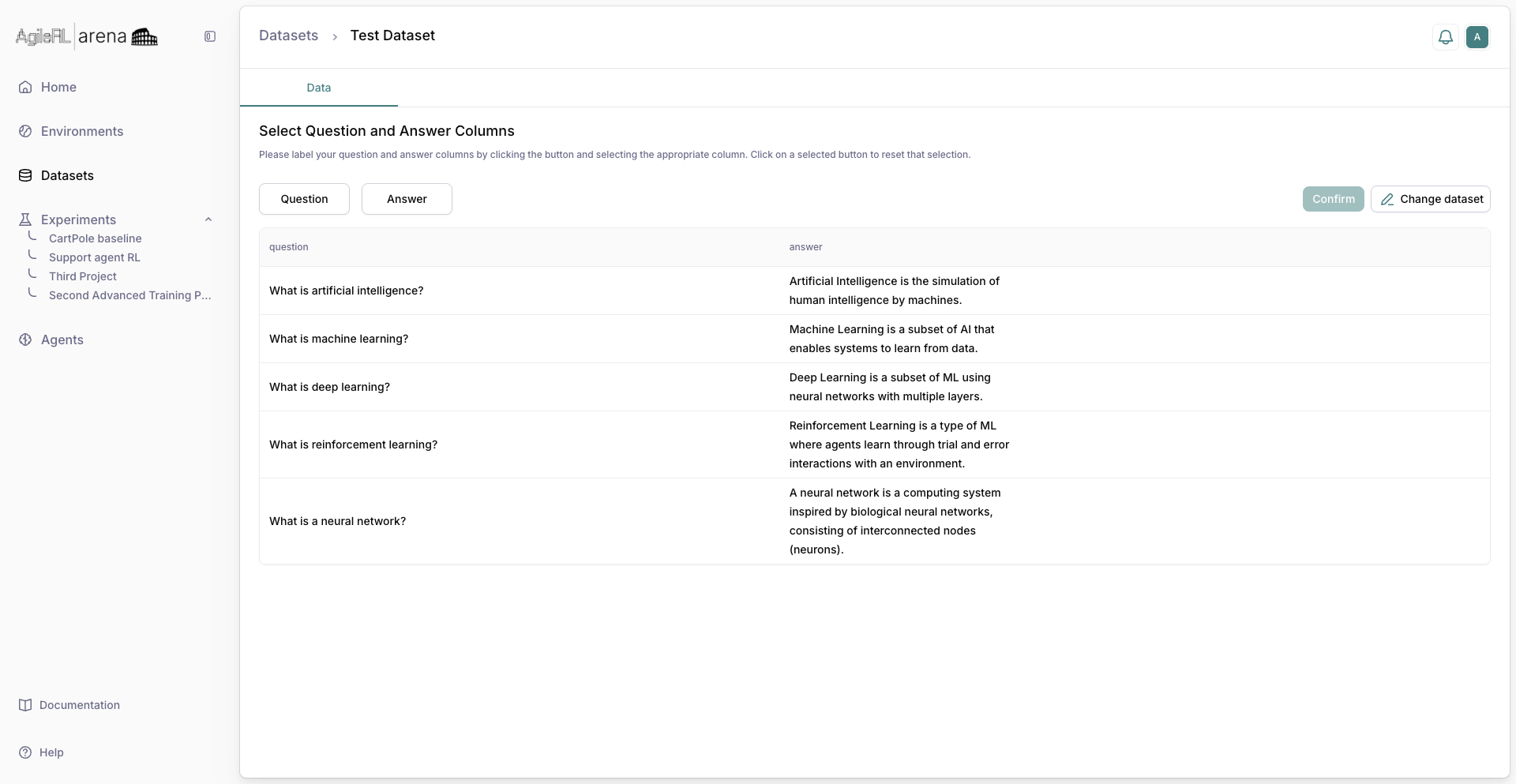
Selecting prompt, chosen, and rejected columns.
5. Preview
Check a sample of rows after mapping.
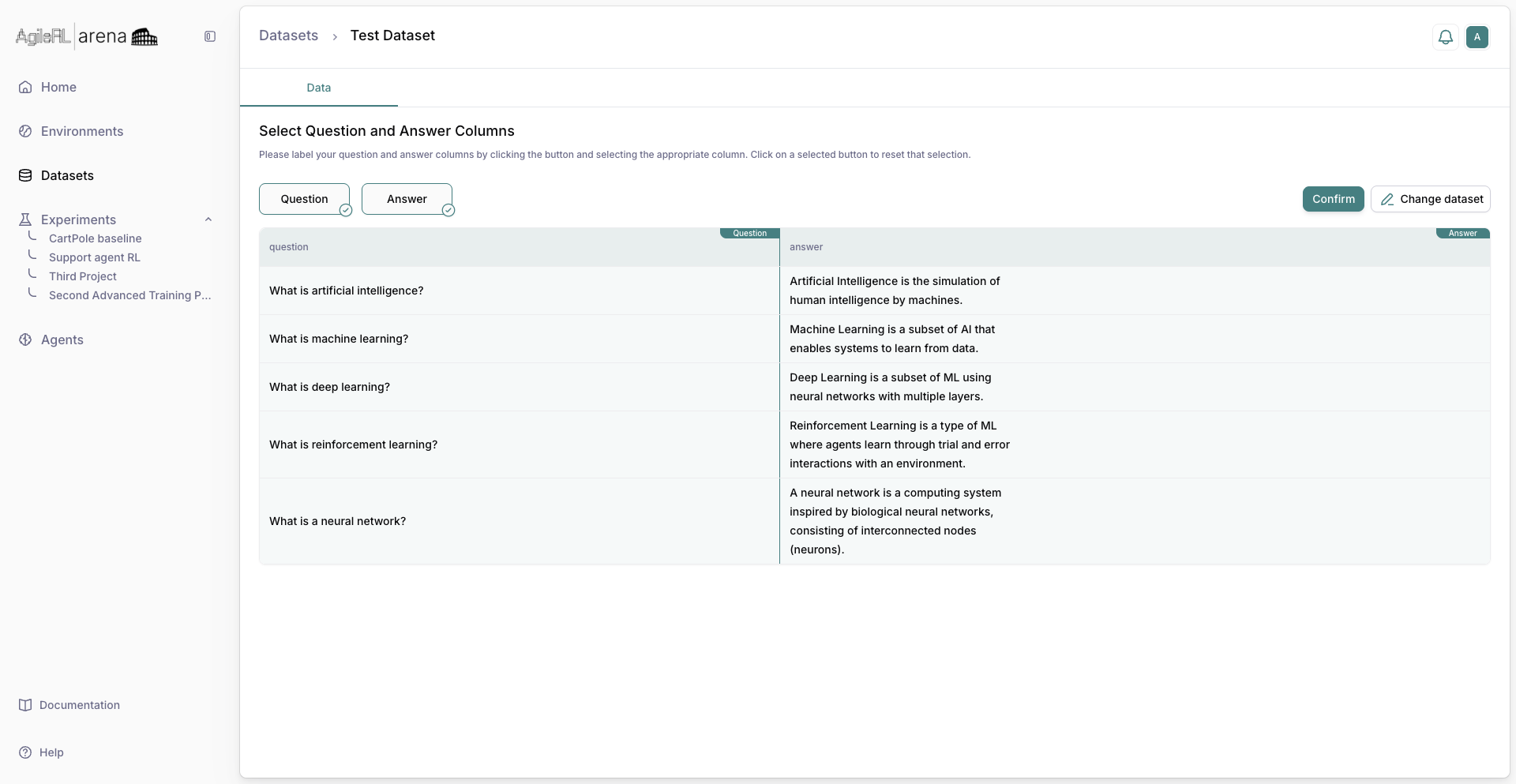
Preview of uploaded preference rows.
6. Saved dataset
Save. The dataset shows up in the list and in the experiment wizard.
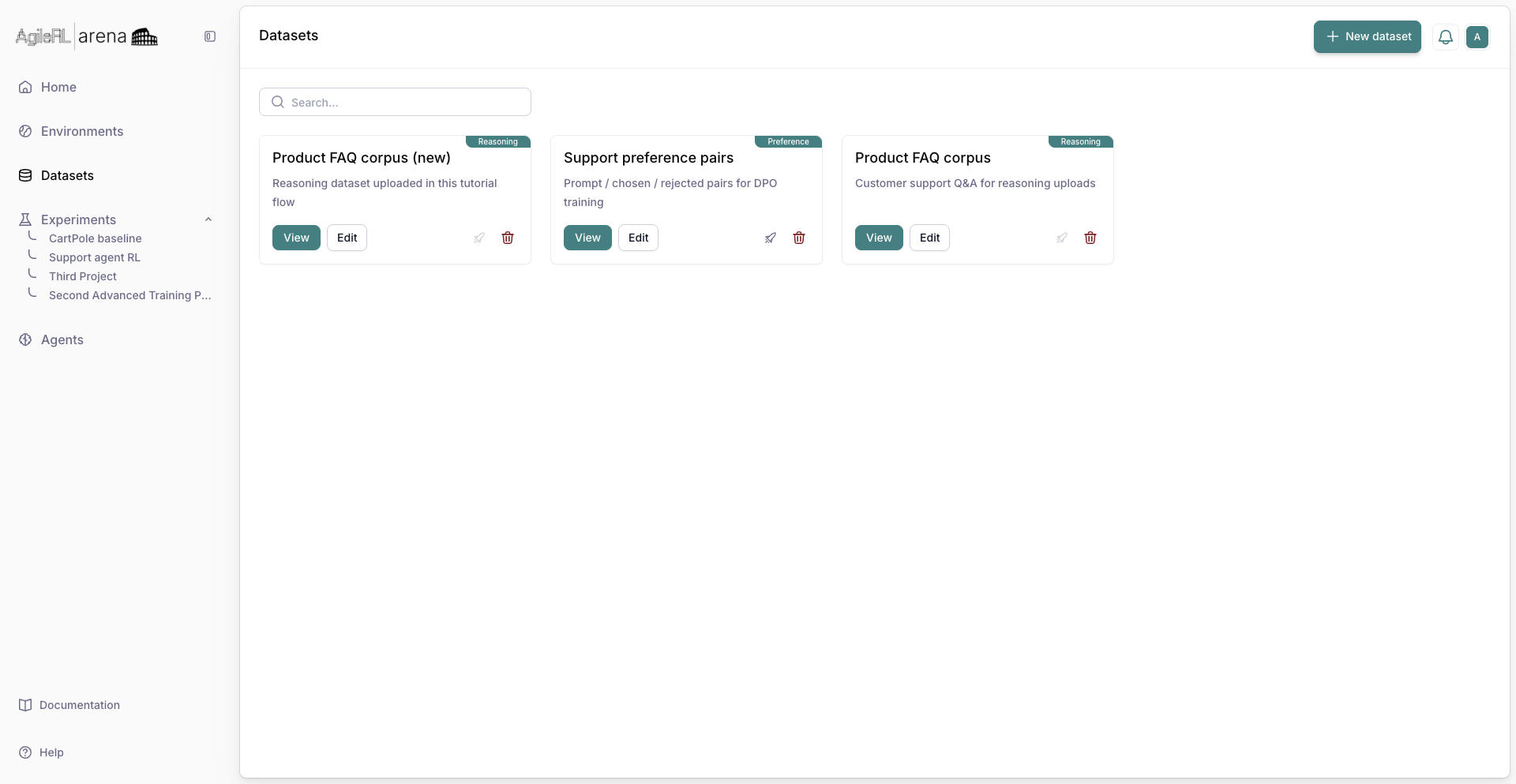
The dataset listed after save.
From the terminal
Create the dataset.
Install the CLI and sign in (Authentication):
pip install "agilerl[arena]"
arena login
# or: export ARENA_API_KEY=arena_pat_…
arena datasets create assistant-prefs --category preference --column-mapping '{"prompt":"prompt","chosen":"chosen","rejected":"rejected"}' --file ./prefs.csv
category must be preference. Mapping keys are Arena names; values are column names in your file.
Python
from agilerl.arena import ArenaClient

with ArenaClient() as client:
    client.create_dataset(
        name="assistant-prefs",
        category="preference",
        file="./prefs.csv",
        column_mapping={
            "prompt": "prompt",
            "chosen": "chosen",
            "rejected": "rejected",
        },
    )