Upload a custom environment
Add your own Python gym code, choose an entrypoint class, validate, and save a version before training.
Prerequisites
Classic RL or Advanced Training project (custom gyms work with Classic RL experiments).
A Python module or zip ready to upload.
1. Open Environments
Click Environments in the left sidebar to open the environments list, where built-in gyms and your custom environments appear.
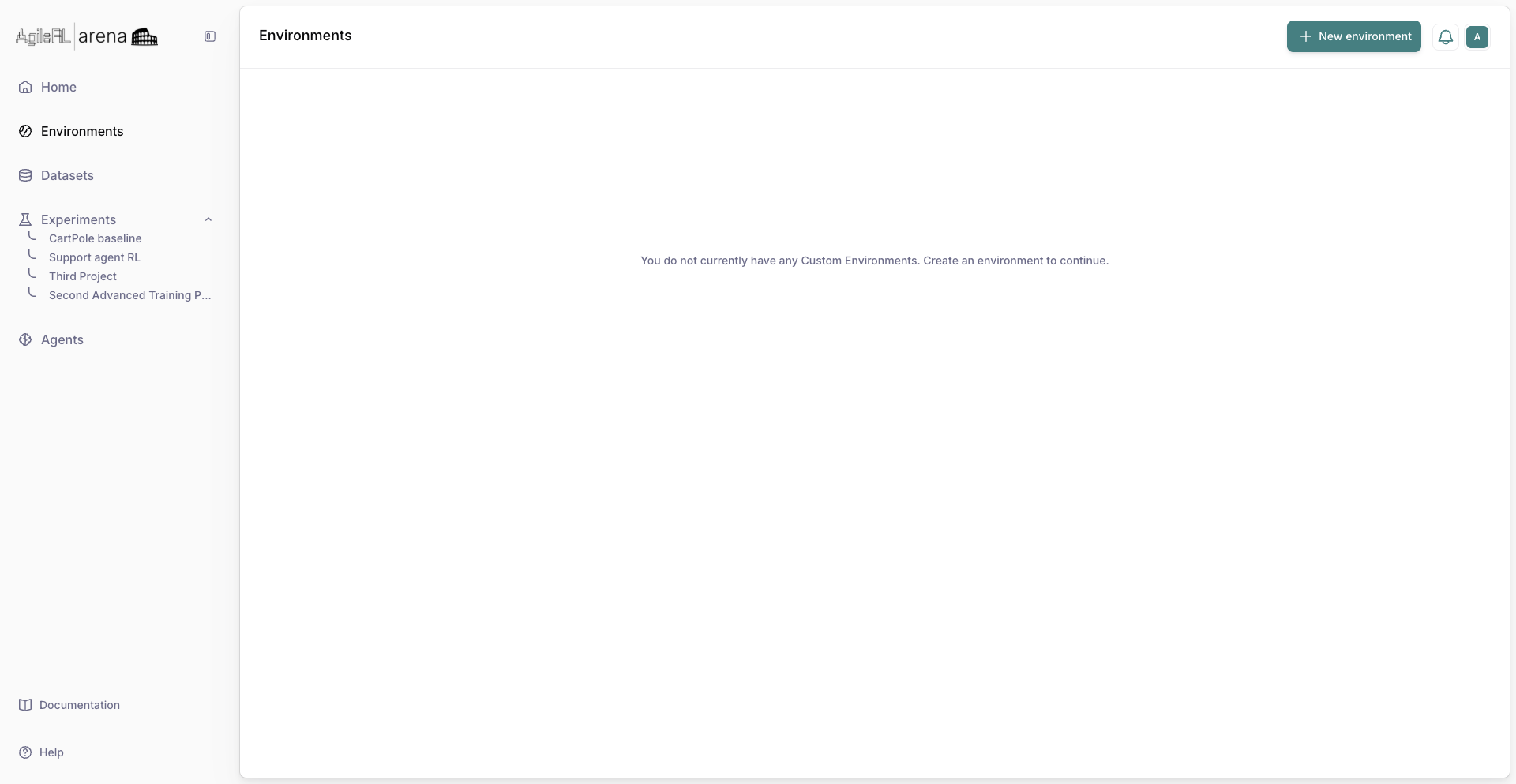
Environments in the sidebar.
2. Create environment
Open the create flow and name the environment. Follow the stepper for upload, entrypoint, and validation.
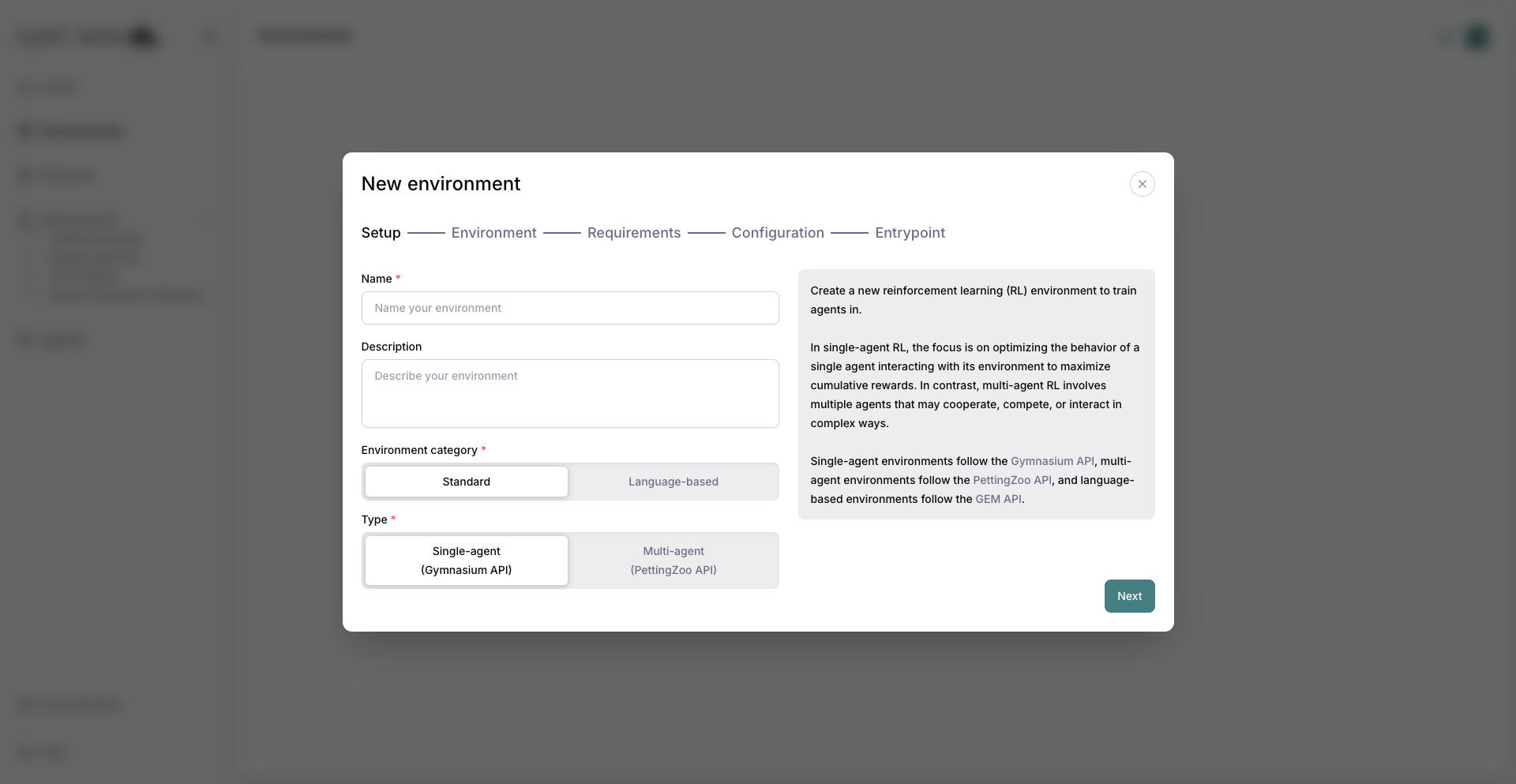
Starting a new custom environment.
3. Upload code
Upload your environment archive on the upload step. Wait until the file is accepted.
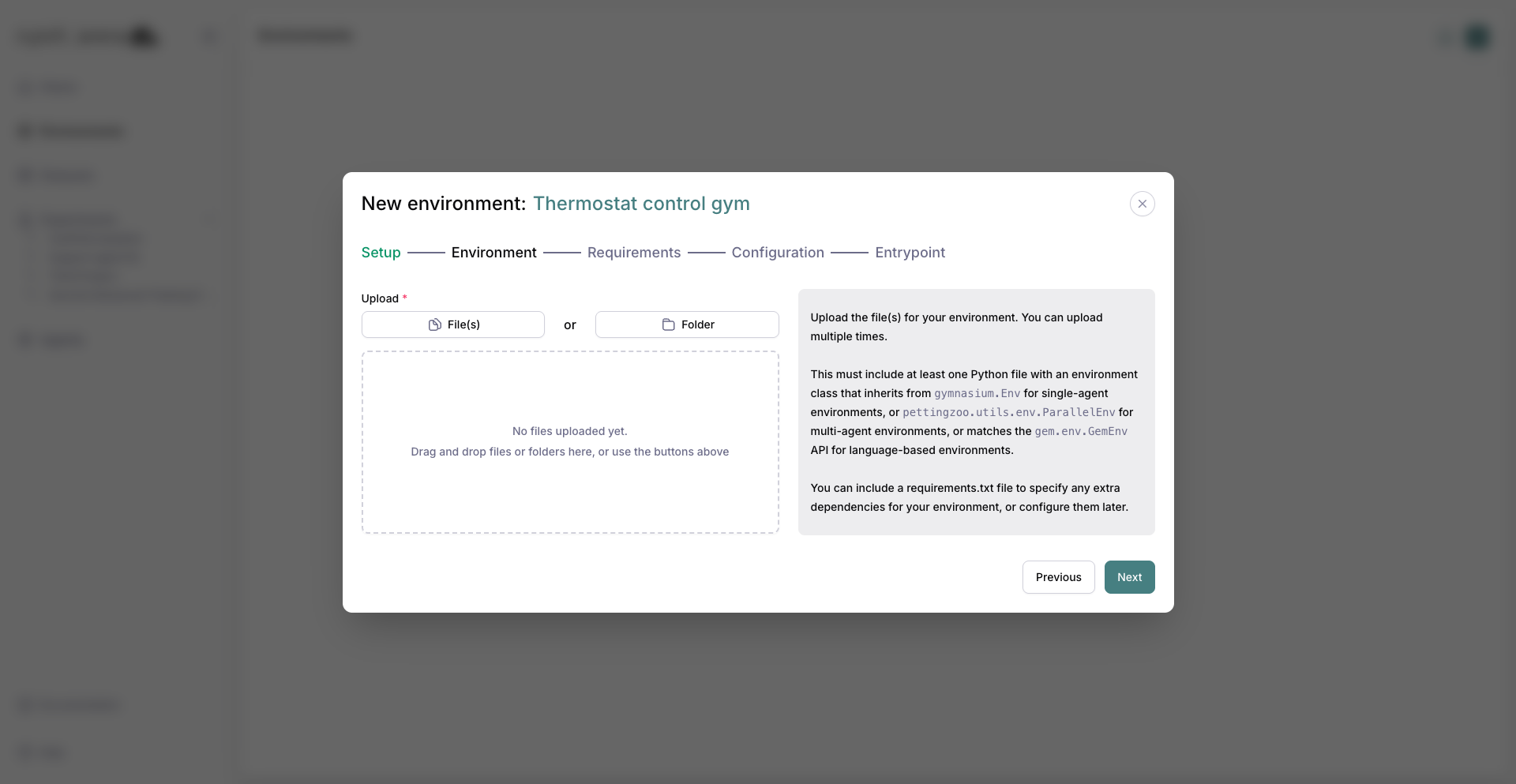
The upload step with a file selected.
4. Entrypoint
Pick the module and class Arena should instantiate as the gym entrypoint.
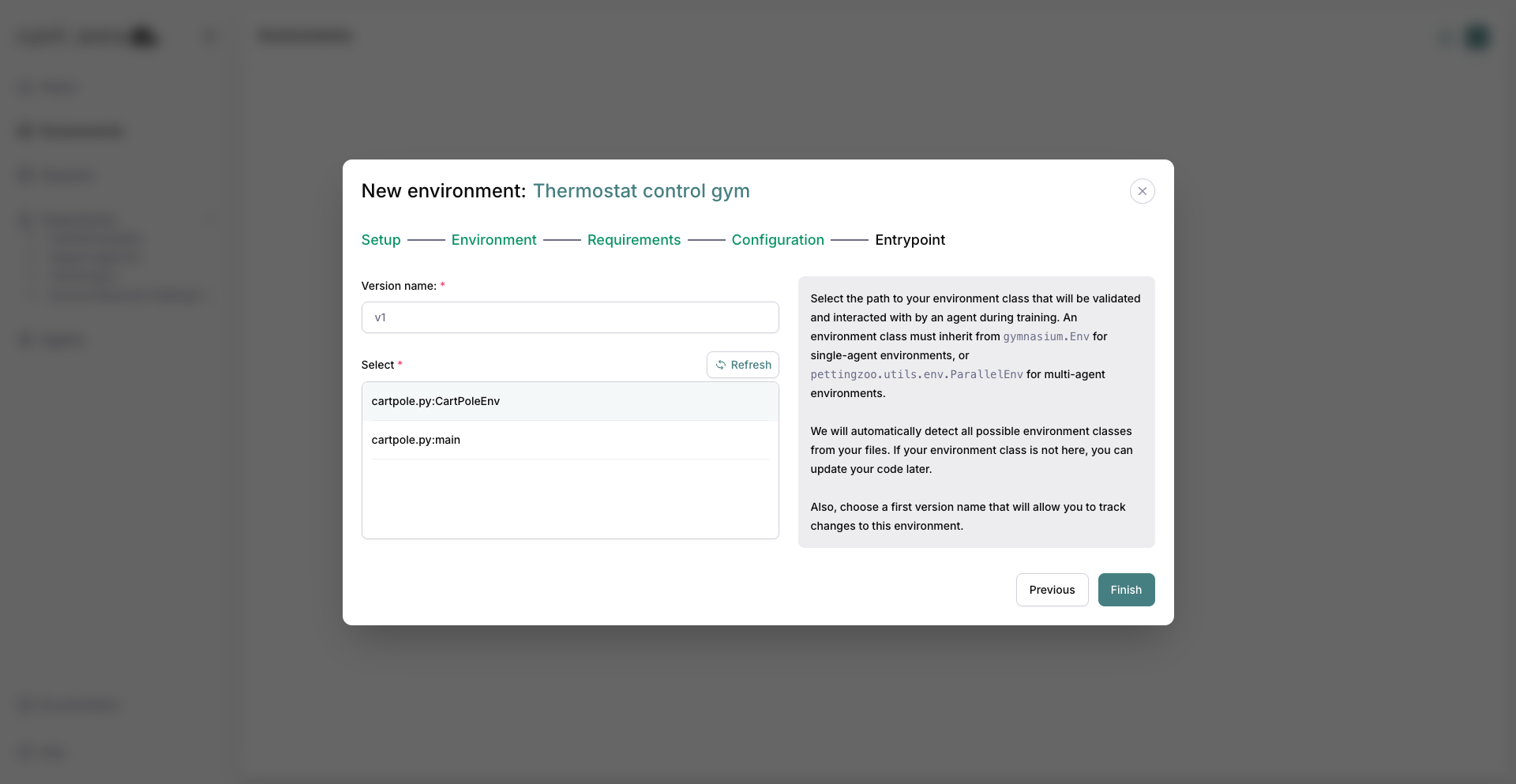
Choosing an entrypoint class.
5. Finish
Click Finish on the entrypoint step to save the environment version and open the code editor. Arena navigates to the working copy immediately; validation runs automatically on that page (you can also click Validate again later).
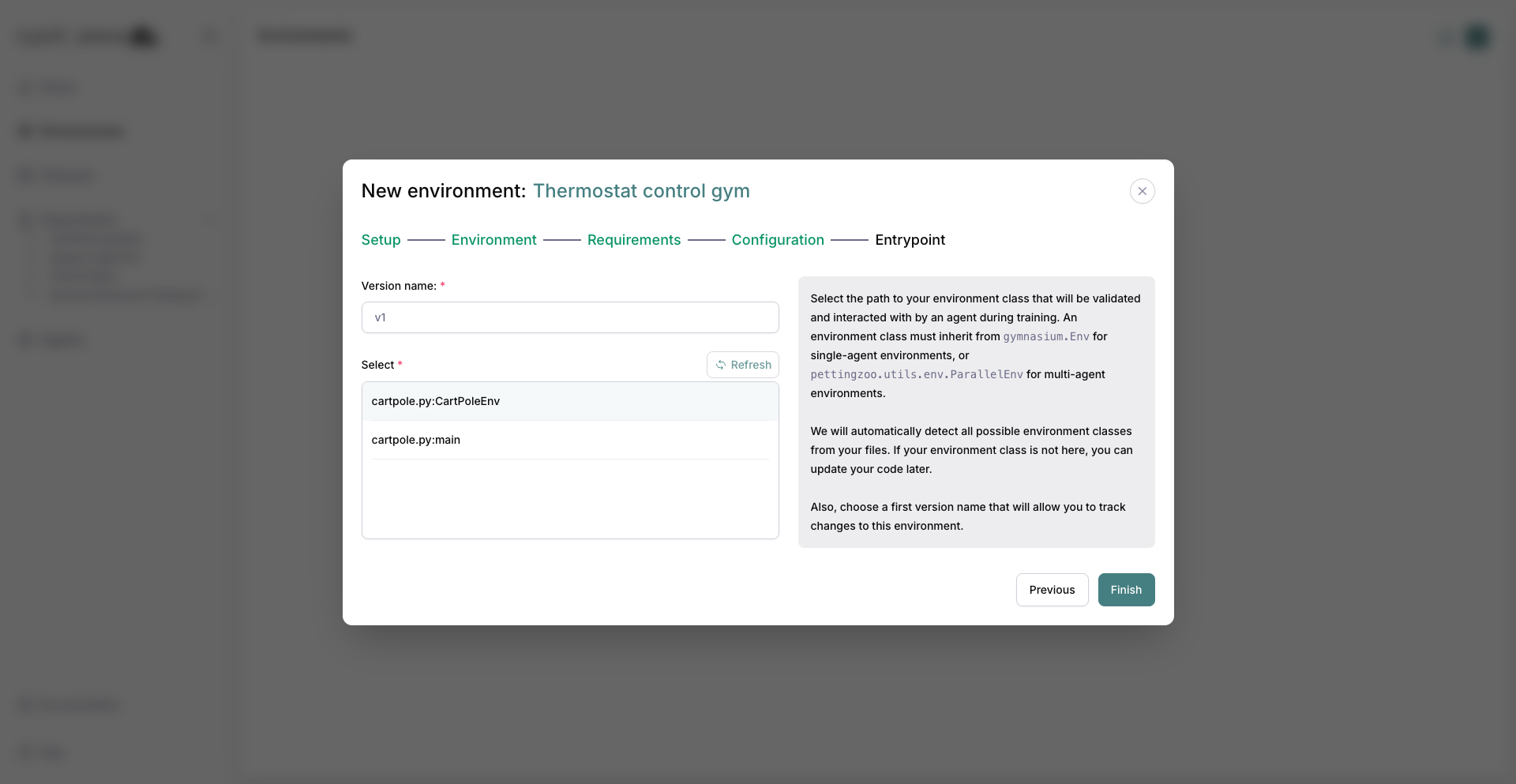
The entrypoint step before you click Finish.
6. Code editor view
After Finish, Arena opens the environment version in the code editor and auto-runs validation on the working copy.
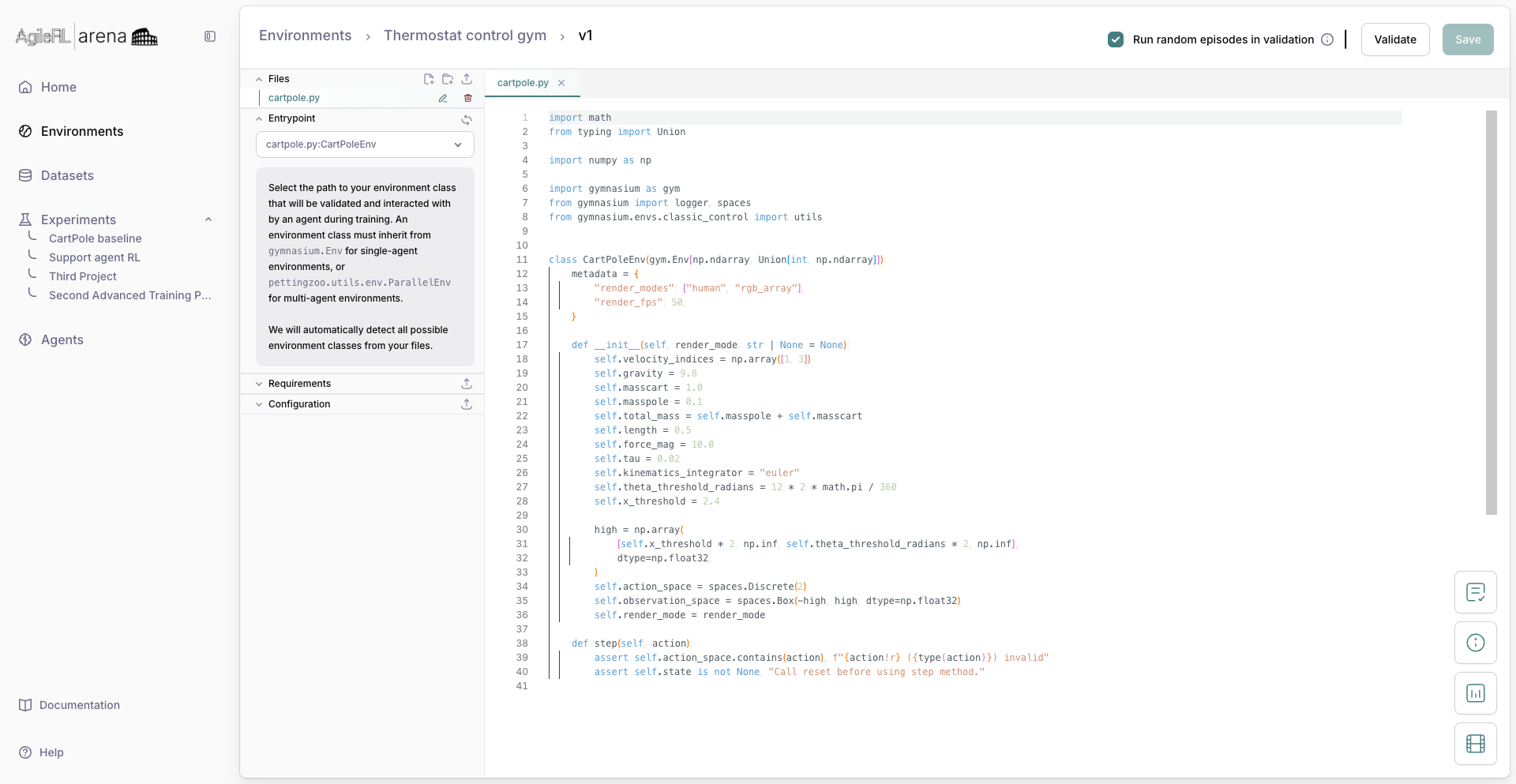
Viewing environment source in the editor.
7. Validation results
In the code editor, run Validate and open the checklist to review test results.
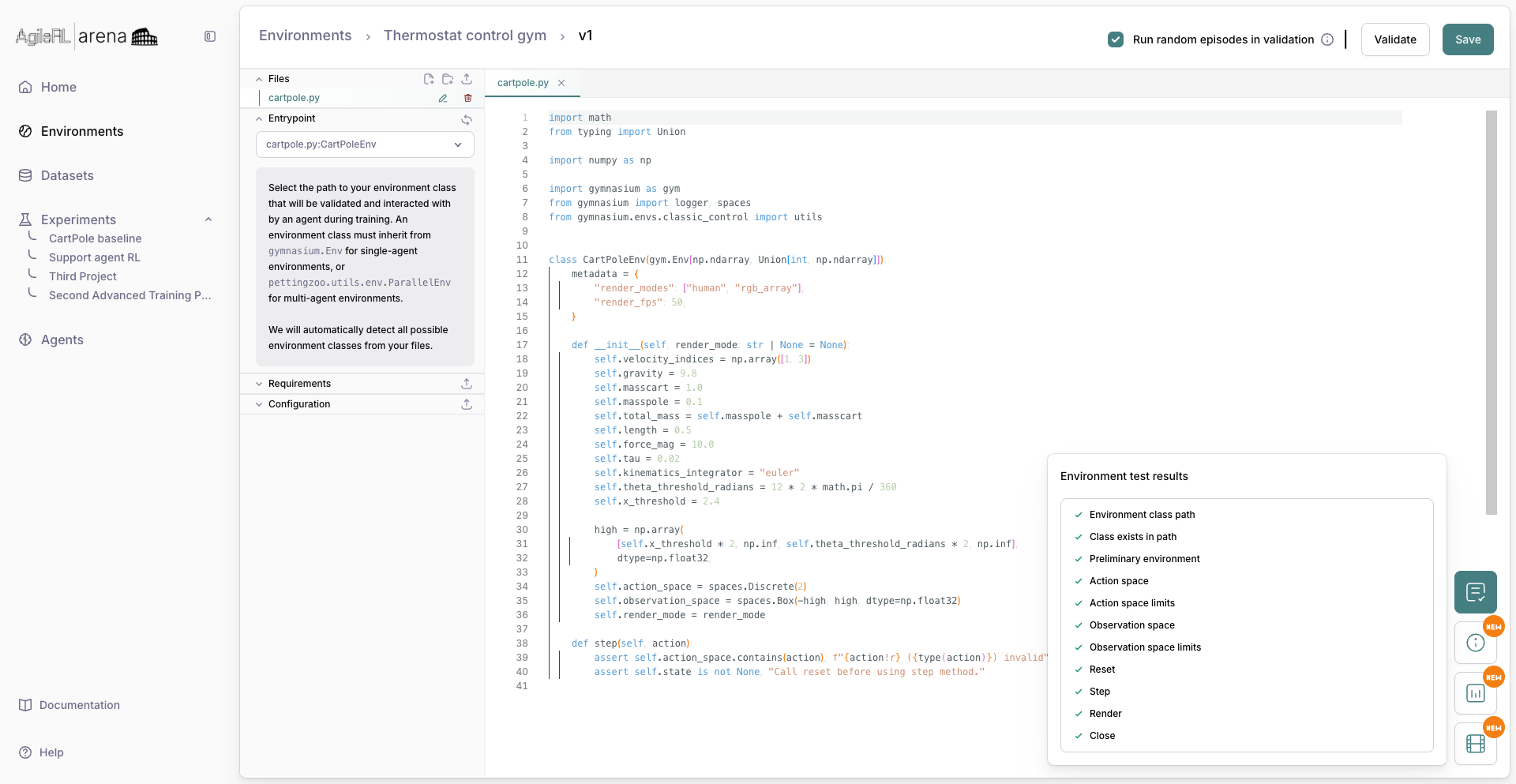
Validation checklist for the working set.
8. Validation chart
Inspect rollout or reward charts from validation when available.
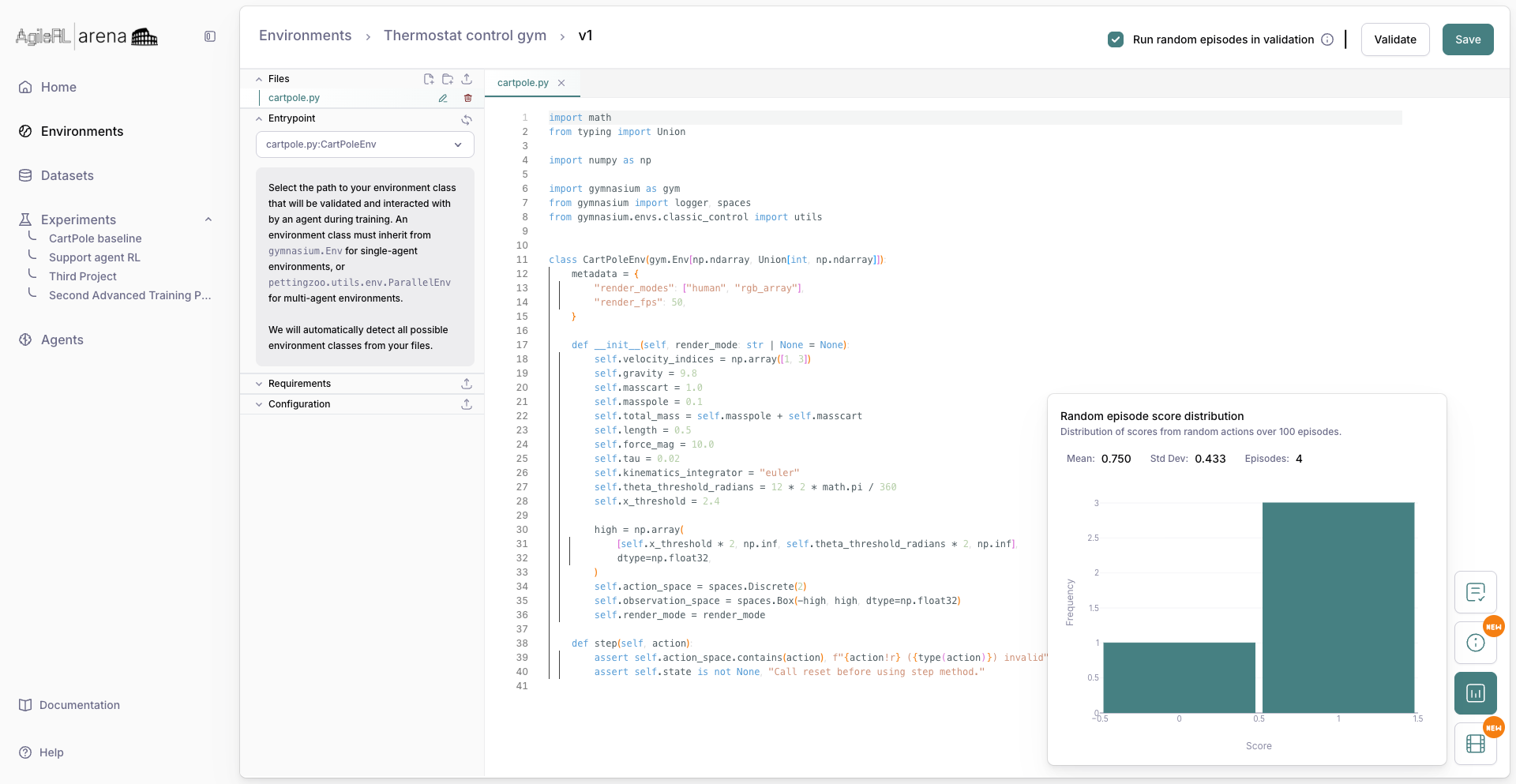
Validation chart panel.
9. Save version
Save the working set as a named version when validation passes.
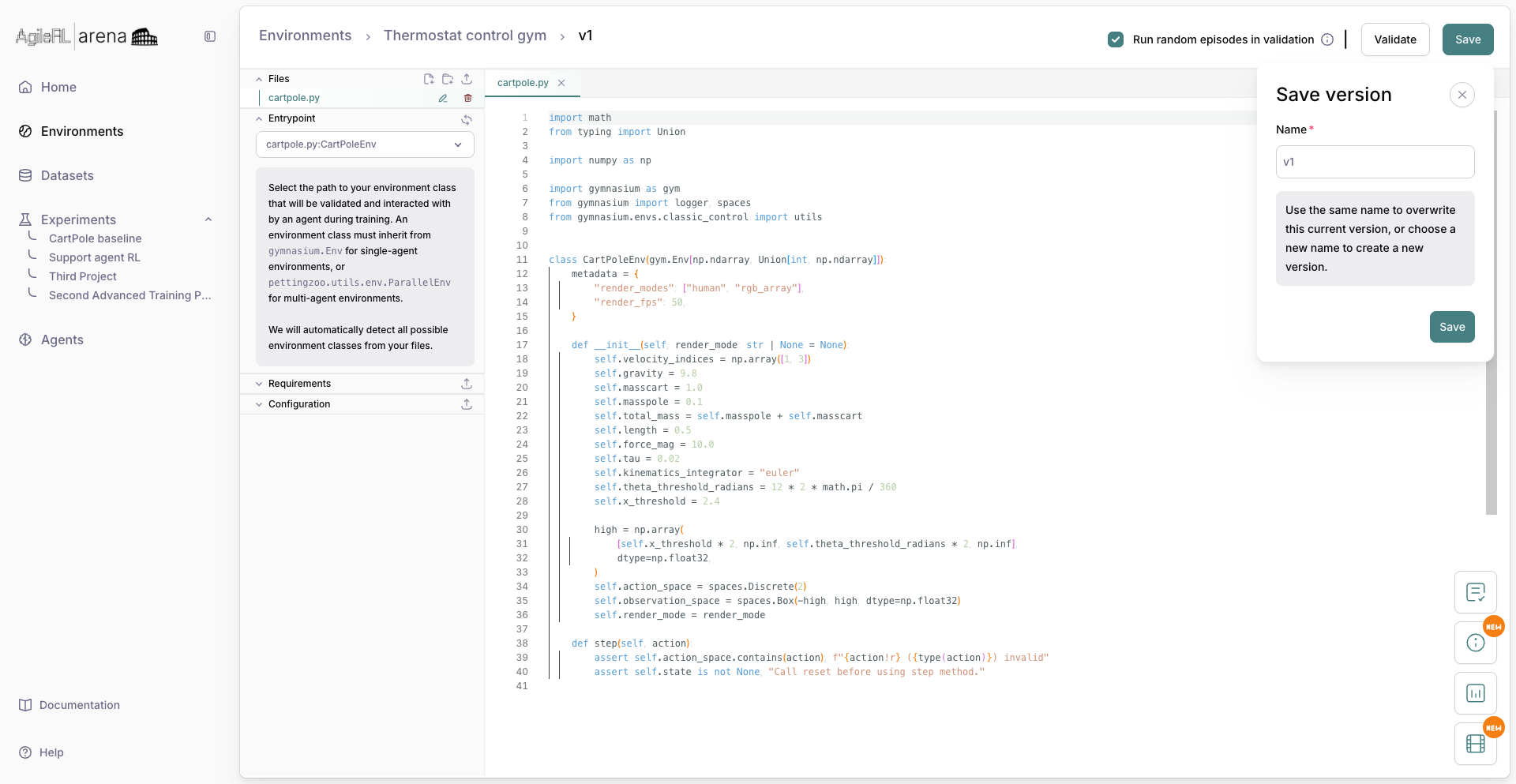
Confirming Save version.
10. Environment detail
After save, the environment page lists versions and status.
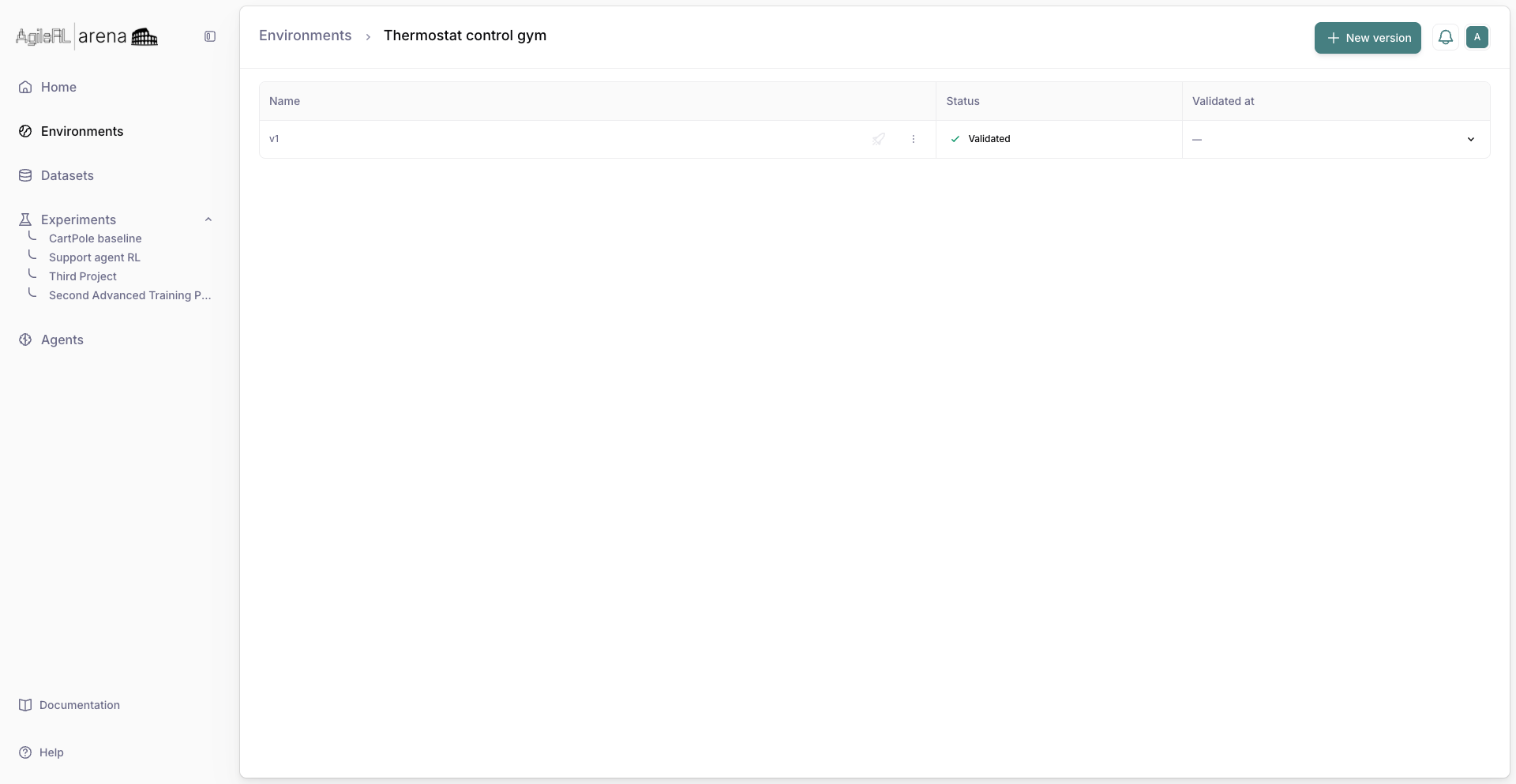
The saved custom environment.